2018 Mitsubishi Outlander Bluetooth Pairing Made Easy
Setting up the 2018 Mitsubishi Outlander Bluetooth is simple once you know the right steps. This guide walks you through pairing your phone, fixing common issues, and getting the best audio quality from your infotainment system. Whether you want hands-free calling or music streaming, you will find everything you need right here.
If you drive a 2018 Mitsubishi Outlander, you already know it is a solid SUV. But one feature that makes daily driving even better is the built-in Bluetooth system. Whether you want to stream music, take hands-free calls, or use voice commands, connecting your phone wirelessly is a game changer. In this article, we will walk you through everything you need to know about the 2018 Mitsubishi Outlander Bluetooth setup. You will learn how to pair your phone, fix common problems, and get the best sound quality every time you hit the road.
Many drivers skip reading their owner manual when it comes to Bluetooth. That is a mistake. The 2018 Mitsubishi Outlander Bluetooth system has several features that most people never fully explore. From audio streaming to contact syncing, there is a lot packed into that little wireless connection. This guide breaks it all down into simple, easy-to-follow steps. No tech degree required. Just clear instructions and practical tips that actually work.
Key Takeaways
- Easy Pairing Process: The 2018 Mitsubishi Outlander Bluetooth setup takes just a few minutes using the infotainment screen.
- Hands-Free Calling Works Great: You can make and receive calls safely while keeping your eyes on the road.
- Common Issues Have Simple Fixes: Most Bluetooth problems can be solved with a quick reset or settings check.
- Audio Quality Improves with Tips: Small adjustments like device placement and firmware updates make a big difference.
- More Than Just Music: The Bluetooth system supports contacts, voice commands, and more.
- Keep It Updated: Regular firmware checks ensure your 2018 Mitsubishi Outlander Bluetooth stays reliable.
📑 Table of Contents
- Understanding Bluetooth in the 2018 Mitsubishi Outlander
- How to Pair Your Phone with the 2018 Mitsubishi Outlander
- Common Bluetooth Problems and How to Fix Them
- Tips for Better Bluetooth Audio Quality
- Bluetooth Features Beyond Music
- Keeping Your 2018 Mitsubishi Outlander Bluetooth Updated
- Final Thoughts
Understanding Bluetooth in the 2018 Mitsubishi Outlander
Before you start pairing, it helps to understand what the Bluetooth system in your 2018 Mitsubishi Outlander can do. Bluetooth is a short-range wireless technology that lets your phone and your car communicate without cables. The 2018 Mitsubishi Outlander uses Bluetooth for two main purposes: hands-free calling and audio streaming.
Hands-free calling lets you make and receive phone calls through your car’s speakers and microphone. You do not need to hold your phone. This is safer and more convenient. Audio streaming sends music, podcasts, and audiobooks from your phone to your car’s sound system. Both features work over the same Bluetooth connection, but they operate independently.
The infotainment system in the 2018 Mitsubishi Outlander supports Bluetooth 3.0 or higher, depending on your trim level. This means you get a stable connection with a range of about 30 feet. The system can also remember multiple paired devices, so you and your passenger can both connect your phones at the same time. Understanding these basics makes the rest of the process much smoother.
What Devices Are Compatible?
Most modern smartphones work with the 2018 Mitsubishi Outlander Bluetooth system. This includes iPhones running iOS 10 or later and Android phones running Android 6.0 or higher. You do not need a special app or extra hardware. The car’s infotainment system handles everything natively. If your phone has Bluetooth capability, it should pair without issues.
Some older phones or basic feature phones may also connect, but they might not support all features like audio streaming. The key is to make sure your phone’s Bluetooth is turned on and set to visible. This allows the 2018 Mitsubishi Outlander to detect it during the pairing process. If you are unsure, check your phone’s Bluetooth settings and make sure it is not in airplane mode.
How to Pair Your Phone with the 2018 Mitsubishi Outlander
Pairing your phone with the 2018 Mitsubishi Outlander Bluetooth system is straightforward. Follow these steps carefully and you will be connected in under five minutes. The process is the same whether you have an iPhone or an Android device.
Step-by-Step Pairing Process
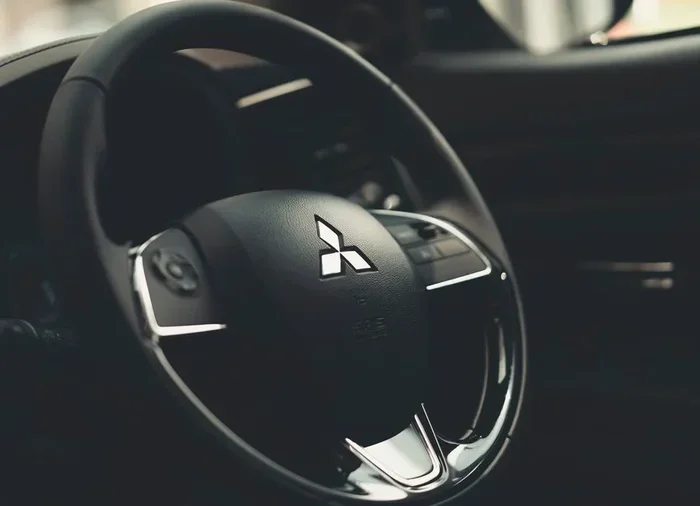
First, turn on your 2018 Mitsubishi Outlander and press the Bluetooth button on the steering wheel or the infotainment screen. The system will enter pairing mode. On your phone, go to Settings, then Bluetooth, and make sure it is turned on. Your phone will start searching for nearby devices.
Look for a device name that starts with “Mitsubishi” or “Outlander” on your phone’s screen. Tap on it to begin the connection. A pairing code will appear on both your phone and the car’s display. Confirm that the codes match, then tap Pair on your phone. The 2018 Mitsubishi Outlander Bluetooth system will complete the connection within a few seconds.
Once paired, you will see a confirmation on the infotainment screen. Your phone’s contacts may take a moment to sync. After that, you should be able to access your contacts, make calls, and stream audio all through the car’s system. Repeat these steps for any additional devices you want to pair.
What If Your Phone Does Not Show Up?
Sometimes your phone will not appear in the list of available devices. This is more common than you think. The first thing to check is whether your phone’s Bluetooth is set to visible or discoverable. On most phones, you need to turn this on manually in the Bluetooth settings menu.
Another common issue is that the 2018 Mitsubishi Outlander Bluetooth system has reached its maximum number of paired devices. The system can usually store up to five or six paired devices. If the list is full, go into the car’s Bluetooth settings and delete an old device you no longer use. Then try pairing again. Restarting both your phone and the car’s infotainment system can also help resolve this issue.
Common Bluetooth Problems and How to Fix Them
Even with a simple setup like the 2018 Mitsubishi Outlander Bluetooth system, you might run into occasional hiccups. Most problems have easy fixes. Here are the most common issues drivers face and how to solve them.
Bluetooth Won’t Turn On
If the Bluetooth function on your 2018 Mitsubishi Outlander will not activate, start with the basics. Make sure the car is running and the infotainment system is fully powered on. Check the Bluetooth toggle in the car’s settings menu. If it is already on, try turning it off and back on again. This simple reset often fixes the problem.
If the Bluetooth still will not turn on, try resetting the entire infotainment system. You can usually do this by holding down the power button on the screen for about 10 seconds. The system will restart, and Bluetooth should work again. If the problem persists, there may be a firmware issue that requires a visit to a dealer or a professional installer.
Audio Cuts Out or Sounds Static
Interference is the most common cause of poor Bluetooth audio. Other wireless devices, USB cables, or even phone cases can disrupt the signal. If your music keeps cutting out or sounds fuzzy, move your phone closer to the car’s antenna. The 2018 Mitsubishi Outlander Bluetooth range is about 30 feet, but obstacles like metal bodies and other electronics can weaken the signal.
Also check if any USB devices are connected. Sometimes a USB cable plugged into the car can interfere with Bluetooth audio. Disconnect all USB devices and see if the audio improves. If static continues, try unpairing and re-pairing your phone. This clears any corrupted connection data and often restores clear audio instantly.
Phone Connects but No Audio Streams
This issue usually happens when the phone connects for calls but does not stream music. Go to your phone’s Bluetooth settings and look for the profile connected to the 2018 Mitsubishi Outlander. Make sure both the “Call Audio” and “Media Audio” options are turned on. Some phones separate these into two different toggles.
On Android phones, you can also check this by going to Settings, then Connected Devices, then Bluetooth, and tapping the gear icon next to your car. Make sure Media Audio is enabled. On iPhones, go to Settings, Bluetooth, tap the info icon next to the car, and ensure both options are checked. This small setting is the reason many people think their Bluetooth is broken when it is actually just one toggle away from working.
Tips for Better Bluetooth Audio Quality
You do not have to settle for mediocre sound when using the 2018 Mitsubishi Outlander Bluetooth system. A few simple adjustments can significantly improve your listening experience. Here are some practical tips that make a real difference.
First, keep your phone close to the car’s Bluetooth antenna. The antenna in the 2018 Mitsubishi Outlander is usually located near the rear windshield or the roof pillar. Placing your phone in the center console or a seat pocket gives you the strongest signal and the best audio quality.
Second, avoid using Bluetooth while charging your phone. USB charging can sometimes introduce electrical interference that affects Bluetooth audio. If you need to charge and stream, use a Bluetooth-enabled FM transmitter or a dedicated auxiliary cable as a backup. Third, keep your phone’s software updated. Manufacturers regularly release Bluetooth firmware updates that improve connection stability and audio quality.
Fourth, lower the volume on your phone before connecting. When the 2018 Mitsubishi Outlander Bluetooth system connects, it sets its own volume level. If your phone volume is too high, it can cause distortion. Start with the phone volume at about 70 percent and adjust from the car’s sound system controls. Finally, consider using high-quality music files or streaming services that support high-bitrate audio. Bluetooth compression can only do so much, but starting with better source material always helps.
Bluetooth Features Beyond Music
The 2018 Mitsubishi Outlander Bluetooth system does much more than play music. Once your phone is paired, you unlock a range of convenient features that make driving safer and more connected.
Hands-Free Calling and Voice Commands
With hands-free calling, you can answer incoming calls without taking your hands off the steering wheel. The 2018 Mitsubishi Outlander Bluetooth system uses the car’s built-in microphone to pick up your voice clearly. You can also use voice commands to dial contacts, redial the last number, or reject a call. This feature is especially useful when you are driving in heavy traffic or bad weather.
To access voice commands, press the voice button on the steering wheel and speak clearly. The system will recognize contact names and phone numbers. This hands-free capability is not just convenient. It is also a key safety feature that keeps your attention on the road.
Contact Syncing and Recent Calls
When you pair your phone, the 2018 Mitsubishi Outlander Bluetooth system can sync your phone’s contact list. This means you can search for contacts by name using the car’s display screen. You do not need to remember phone numbers or scroll through your phone while driving.
The system also keeps a log of recent calls. You can access your call history directly from the infotainment screen. This makes it easy to return a missed call or call back the last person you spoke with. Some owners find this feature so useful that they pair their phones every time they get in the car, even for short trips.
Multiple Device Pairing
The 2018 Mitsubishi Outlander Bluetooth system supports multiple paired devices. This means you can have your phone and your passenger’s phone connected at the same time. The system will automatically switch to the phone that is actively making or receiving a call. This is great for families or couples who share the same vehicle.
To manage multiple devices, go to the Bluetooth settings in the infotainment system. You can see all paired devices listed there. You can prioritize which device connects automatically when you start the car. This small feature adds a lot of convenience, especially if you use different phones for work and personal use.
Keeping Your 2018 Mitsubishi Outlander Bluetooth Updated
Like any electronic system, the Bluetooth functionality in your 2018 Mitsubishi Outlander can benefit from regular updates. Mitsubishi occasionally releases firmware updates for the infotainment system that improve Bluetooth performance, fix bugs, and add new features.
To check for updates, visit your local Mitsubishi dealer or check the Mitsubishi website for the latest firmware. Some updates can be installed by a dealer technician in just a few minutes. Others may require a USB update process that you can do at home. Check your owner’s manual for specific instructions on updating your infotainment system.
Keeping your system updated is one of the easiest ways to maintain a strong and reliable Bluetooth connection. If you notice that your 2018 Mitsubishi Outlander Bluetooth connection has become unstable over time, an update might be all you need to fix it. It is also a good idea to clear old paired devices regularly. This keeps your Bluetooth list clean and reduces the chances of connection conflicts.
Final Thoughts
The 2018 Mitsubishi Outlander Bluetooth system is a powerful and convenient feature that enhances your daily driving experience. From easy pairing to hands-free calling and high-quality audio streaming, it does a lot more than most people realize. By following the steps in this guide, you can get the most out of your car’s wireless connectivity.
Remember to keep your phone and car system updated, place your phone strategically for the best signal, and explore all the features beyond just music. The 2018 Mitsubishi Outlander Bluetooth system is designed to make your life easier and your drives safer. Take a few minutes to explore the settings, try out the voice commands, and enjoy a seamless wireless connection every time you turn the key.
Frequently Asked Questions
How do I reset the Bluetooth on my 2018 Mitsubishi Outlander?
To reset the Bluetooth system, go to the infotainment settings, find the Bluetooth menu, and select “Reset Bluetooth” or “Clear Paired Devices.” You can also restart the entire infotainment system by holding the power button for 10 seconds. This clears any corrupted connection data and often fixes most Bluetooth issues instantly.
Can I connect two phones at the same time to the 2018 Mitsubishi Outlander Bluetooth?
Yes, the 2018 Mitsubishi Outlander Bluetooth system supports multiple paired devices. You can have two or more phones connected simultaneously. The system will automatically switch to the phone that is actively making or receiving a call. You can manage priority settings in the car’s Bluetooth menu.
Why does my Bluetooth audio keep cutting out in my 2018 Mitsubishi Outlander?
Audio cutting out is usually caused by interference or a weak signal. Move your phone closer to the car’s antenna, disconnect any USB devices that might be causing interference, and try unpairing and re-pairing your phone. If the problem continues, check for firmware updates for your infotainment system, as updates often resolve connectivity issues.
Does the 2018 Mitsubishi Outlander support Bluetooth audio streaming for podcasts?
Yes, the 2018 Mitsubishi Outlander Bluetooth system supports audio streaming for all types of audio content. This includes music, podcasts, audiobooks, and any other audio that plays through your phone’s media player. Just make sure the Media Audio option is enabled in your phone’s Bluetooth settings for the car connection.
Can I use voice commands with the 2018 Mitsubishi Outlander Bluetooth system?
Absolutely. The 2018 Mitsubishi Outlander Bluetooth system works with voice commands for hands-free calling. Press the voice button on the steering wheel and speak the name of the contact you want to call or the number you want to dial. The system recognizes voices clearly and makes it easy to stay focused on the road.
What should I do if my 2018 Mitsubishi Outlander Bluetooth will not pair with my new phone?
Start by making sure your phone’s Bluetooth is turned on and set to visible. Delete any old paired devices from the car’s system to free up space. Restart both your phone and the car’s infotainment system, then try pairing again. If it still does not work, reset the car’s Bluetooth settings and attempt the pairing process from scratch. Most pairing issues are resolved with these simple steps.