How to Use Google Maps on Your Toyota Yaris Screen
You can absolutely use your mobile Google Maps on your Toyota Yaris screen. This guide shows you how to connect your phone, mirror maps, and navigate with ease. Whether you have Android Auto or Apple CarPlay, the process is simple and fast. We cover every step so you can start using Google Maps navigation on your big screen right away. No tech skills are needed, and the setup takes just minutes.
Have you ever wanted to see your Google Maps navigation on a bigger screen while driving your Toyota Yaris? It is a simple question that many car owners ask. The good news is that you can use your mobile Google Maps on your Toyota Yaris screen with very little effort. Whether you are heading to a new place or commuting to work, having maps on your car display makes driving much easier and safer.
Many people still stare at their small phone screens while driving. That can be dangerous and tiring on your eyes. The Toyota Yaris comes with a smart infotainment system that supports phone connections. This means you can pull up your mobile navigation app right on the big touchscreen. It is a game changer for daily driving.
In this guide, we will walk you through everything you need to know. We will cover how to connect your phone, what you need to get started, and how to fix common issues. By the end, you will feel confident using Google Maps on your Toyota Yaris screen like a pro. Let us get into it.
Key Takeaways
- Easy Connection: You can link your phone to the Toyota Yaris screen using Android Auto, Apple CarPlay, or a simple USB cable.
- Two Main Methods: Both wireless and wired options work great for mirroring Google Maps on your Toyota Yaris.
- Hands-Free Driving: Using Google Maps on your car screen keeps your eyes on the road and hands on the wheel.
- Quick Setup: The whole process takes less than five minutes and requires no extra hardware.
- Common Issues Have Fixes: Most problems like disconnections or lag have simple solutions you can do yourself.
- Better Than Phone Maps: A bigger screen means clearer directions and a safer, more enjoyable drive.
📑 Table of Contents
- Understanding Your Toyota Yaris Screen
- Can I Use My Mobile Google Maps on My Toyota Yaris Screen?
- How to Connect Google Maps to Your Toyota Yaris Screen
- Step-by-Step Guide to Mirror Google Maps on Your Toyota Yaris
- Tips for Better Navigation on Your Toyota Yaris Screen
- Common Problems and How to Fix Them
- Final Thoughts on Using Google Maps with Your Toyota Yaris
Understanding Your Toyota Yaris Screen
The Toyota Yaris comes with a built-in infotainment system. This is the screen in your car that handles music, calls, and navigation. It is also called the Toyota Yaris multimedia center. The screen size varies by model year, but most newer versions have a clear and responsive touchscreen. You can tap, swipe, and scroll just like you do on your phone.
What Is the Toyota Yaris Infotainment System?
The Toyota Yaris infotainment system is the brain behind your car’s display. It handles radio, Bluetooth, and phone connections. Some models come with a basic system, while others have a more advanced setup. The newer Toyota Yaris models support smart features like Apple CarPlay and Android Auto. These are the key tools that let you use Google Maps on your car screen.
Your Toyota Yaris touchscreen is designed to be driver-friendly. The icons are big and easy to tap. The display is bright enough to see in direct sunlight. This makes it a great option for navigation on a big screen. You do not need to buy any extra parts to get started. Your car already has what you need.
Does Your Toyota Yaris Model Support Phone Mirroring?
Most Toyota Yaris models from 2018 and newer support phone mirroring. Older models may need a different approach. You can check your car manual or look at the screen for CarPlay or Android Auto icons. If you see those symbols, you are good to go. If not, you may need a mirror link adapter. But for most owners, the built-in system works perfectly fine.
Can I Use My Mobile Google Maps on My Toyota Yaris Screen?
The short answer is yes. You can absolutely use your mobile Google Maps on your Toyota Yaris screen. The Toyota Yaris smart features make it easy to project your phone’s map display onto the car screen. This is one of the best things about modern car technology. You get a bigger view, clearer directions, and a much safer driving experience.
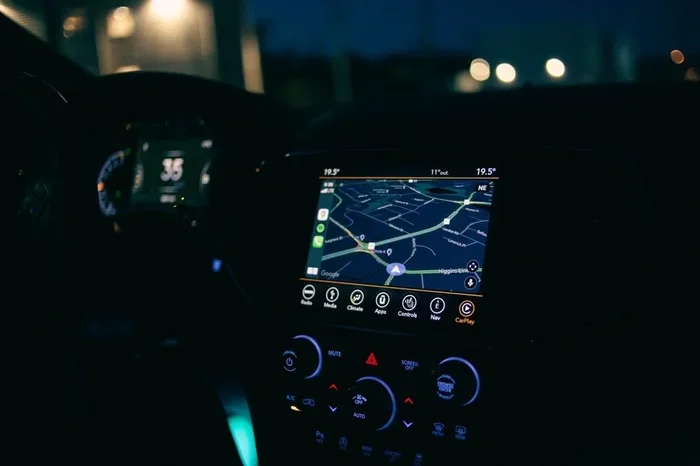
When you mirror Google Maps to your car screen, you see the full map on the Toyota Yaris touchscreen. Turn-by-turn directions appear large and clear. You can zoom in and out with a simple tap. The voice guidance comes through your car speakers. This means you do not have to look at your phone at all. It is a much better way to navigate.
What You Need Before You Start
Before you begin, make sure you have a few things ready. First, your smartphone must be compatible. Most iPhones and Android phones work with the Toyota Yaris system. Second, you need a USB cable or a Bluetooth connection. Third, make sure your Google Maps app is updated to the latest version. An outdated app can cause connection problems.
Here is a quick checklist of what you need:
- A smartphone with Google Maps installed
- A USB cable that supports data transfer (not just charging)
- Bluetooth enabled on both your phone and car
- The latest version of Android Auto or Apple CarPlay
- A stable internet connection on your phone
Once you have these items, you are ready to connect. The process is simple and takes only a few minutes.
How to Connect Google Maps to Your Toyota Yaris Screen
Connecting your phone to the Toyota Yaris screen is the most important step. There are two main ways to do this. You can use Android Auto if you have an Android phone. Or you can use Apple CarPlay if you have an iPhone. Both methods let you display Google Maps on your car screen with ease.
Using Android Auto for Google Maps
If you have an Android phone, Android Auto is your best friend. It is a free app from Google that mirrors your phone screen onto your car display. Here is how to set it up:
- Download Android Auto from the Google Play Store
- Plug your phone into the Toyota Yaris USB port
- Wait for the connection to appear on screen
- Tap the Android Auto icon on your Toyota Yaris touchscreen
- Open Google Maps from the Android Auto home screen
That is it. Your Google Maps will now show up on the Toyota Yaris screen. You can use voice commands to search for places. The directions will appear in large, easy-to-read text. This is one of the simplest ways to get GPS navigation on your car screen.
Using Apple CarPlay for Google Maps
If you have an iPhone, Apple CarPlay works in a similar way. CarPlay is Apple’s system for connecting your phone to your car. Here is how to use it with Google Maps:
- Make sure CarPlay is enabled on your iPhone
- Plug your iPhone into the Toyota Yaris USB port
- Select CarPlay on the Toyota Yaris touchscreen
- Tap the Google Maps icon on the CarPlay screen
- Start navigating as you normally would
Google Maps on CarPlay works just like it does on your phone. The difference is that the map is now on the bigger Toyota Yaris display. You get clearer directions and a much better view of the road ahead. It is a simple upgrade that makes a big difference.
Wireless vs Wired Connection
You have two options for connecting your phone to the Toyota Yaris screen. You can use a USB cable for a wired connection. Or you can go wireless using Bluetooth. Both methods work well, but they have different perks.
A wired connection is more stable. The map data loads faster and the connection rarely drops. A wireless connection is more convenient. You do not have to plug in a cable every time. Some Toyota Yaris models support wireless Android Auto or CarPlay. Check your car settings to see if this option is available.
For the best experience, we recommend a wired connection when driving long distances. It is more reliable and keeps your screen mirroring smooth. For short trips, wireless works great and saves you the hassle of cables.
Step-by-Step Guide to Mirror Google Maps on Your Toyota Yaris
Now let us walk through the full process step by step. This guide works for most Toyota Yaris models with a touchscreen display.
- Start your Toyota Yaris and make sure the engine is running
- Unlock your phone and make sure Bluetooth is on
- Connect your phone to the car using a USB cable or wirelessly
- Select your connection type on the Toyota Yaris screen (Android Auto or CarPlay)
- Open Google Maps from the car display menu
- Set your destination using voice commands or the touchscreen
- Start navigation and enjoy the ride with clear directions on the big screen
Once Google Maps is open on your Toyota Yaris screen, you can use all the familiar features. You can search for restaurants, gas stations, and new places. The voice guidance will tell you when to turn. The map will update in real time as you drive. It feels just like using your phone, but with a much better view.
One great tip is to set your destination before you start driving. This keeps you safe and focused on the road. You can also save your favorite places in Google Maps for quick access later. The Toyota Yaris screen makes it easy to see everything at a glance.
Tips for Better Navigation on Your Toyota Yaris Screen
Using Google Maps on your Toyota Yaris screen is great, but a few tips can make the experience even better. Here are some practical ideas to help you get the most out of your setup.
- Keep your phone charged: Navigation uses a lot of battery. Plug your phone in while driving to avoid power loss.
- Use a data plan: Google Maps needs internet to load maps and traffic data. Make sure your phone has a good connection.
- Adjust screen brightness: The Toyota Yaris screen may be too bright or too dim for your taste. Adjust it in the car settings for the best view.
- Update your apps: Keep Google Maps, Android Auto, and CarPlay updated. Updates fix bugs and improve performance.
- Use voice commands: Say “Hey Google” or “Siri” to search for places without touching your phone. This keeps your hands on the wheel.
- Download offline maps: If you drive in areas with weak signal, download your map area ahead of time. Google Maps works offline too.
These small steps make a big difference. Your Toyota Yaris navigation experience will feel smoother and more reliable. You will wonder how you ever drove without it.
Quick Tips for Daily Use
Here are a few quick tips you can use every day. First, pin your most-used locations in Google Maps. This saves time when you head to the same places. Second, turn on traffic alerts in Google Maps settings. This helps you avoid delays and find the fastest route. Third, use the night mode on your Toyota Yaris screen to reduce glare during evening drives.
Another great tip is to use the split-screen feature if your Toyota Yaris supports it. You can see the map and your music controls at the same time. This makes driving more convenient and fun. Small adjustments like these add up to a much better experience over time.
Common Problems and How to Fix Them
Sometimes things do not work perfectly the first time. That is normal. Here are the most common issues people face when using Google Maps on their Toyota Yaris screen, along with simple fixes.
Problem 1: Google Maps does not appear on the car screen. This usually happens when the connection is not set up correctly. Try unplugging your phone and plugging it back in. Make sure Android Auto or CarPlay is selected on the Toyota Yaris display. Restart both your phone and the car system if needed.
Problem 2: The map is slow or lagging. A slow connection can cause lag. Make sure you have a strong internet signal. If you are using Bluetooth, try switching to a USB cable for a faster connection. Also, close other apps on your phone to free up memory.
Problem 3: The screen keeps disconnecting. This is a common issue with wireless connections. Try using a wired USB cable instead. If you must use wireless, make sure your phone and car are close together. Also, check for software updates on both devices.
Problem 4: Voice guidance is not working. Check the volume on your Toyota Yaris system. Make sure the media volume is turned up. Also, check Google Maps settings to ensure voice navigation is enabled. Sometimes a simple restart of the app fixes this issue.
Problem 5: Google Maps shows the wrong location. This can happen if your phone GPS is not getting a good signal. Wait a moment for the GPS to lock on. Make sure nothing is blocking your phone’s antenna. If you are indoors, move to an open area to get a better signal.
Most of these issues have quick and easy fixes. You do not need to visit a mechanic or buy expensive tools. A little patience and the right setup will solve most problems.
Final Thoughts on Using Google Maps with Your Toyota Yaris
Using Google Maps on your Toyota Yaris screen is one of the best upgrades you can make. It turns your car into a smart navigation hub. You get a bigger display, clearer directions, and a much safer driving experience. The setup is simple, and the benefits are huge.
Whether you use Android Auto or Apple CarPlay, the process is straightforward. You just connect your phone, open Google Maps, and start driving. The Toyota Yaris infotainment system makes it all work smoothly. You get the power of mobile navigation right on the big car screen.
We hope this guide has helped you understand how to use Google Maps on your Toyota Yaris. The key is to start simple and build from there. Try the steps we shared and see how it works for you. Soon, you will not know how you ever drove without it.
Remember, the goal is to make your drives safer and more enjoyable. A bigger screen and clearer directions help you stay focused on the road. So go ahead, connect your phone, and explore the world with Google Maps on your Toyota Yaris. Happy driving!
Frequently Asked Questions
Do all Toyota Yaris models support Google Maps on the screen?
Most Toyota Yaris models from 2018 and newer support phone mirroring through Android Auto or Apple CarPlay. Older models may need a mirror link adapter. Check your car manual or look for CarPlay and Android Auto icons on your screen to confirm compatibility.
Can I use Google Maps without an internet connection?
Yes, you can use Google Maps offline if you download your map area ahead of time. The map will still display on your Toyota Yaris screen, but real-time traffic updates and some search features may not work. Always download offline maps before driving through areas with weak signal.
Is Android Auto free to use?
Yes, Android Auto is completely free to download and use. It works with most Android phones and is a great way to use Google Maps on your Toyota Yaris screen. Apple CarPlay is also free for iPhone users. Both systems offer a seamless driving experience at no extra cost.
What if Google Maps keeps disconnecting from my Toyota Yaris screen?
Frequent disconnections are often caused by a loose USB cable or a weak Bluetooth signal. Try switching to a wired USB connection for a more stable link. Also, make sure both your phone and your car system are updated to the latest software versions.
Can I use voice commands with Google Maps on my Toyota Yaris?
Yes, you can use voice commands to search for places, start navigation, and get directions without touching your phone. Just say “Hey Google” or “OK Google” to activate the voice assistant. This keeps your hands on the wheel and your eyes on the road for safer driving.
Will using Google Maps drain my phone battery quickly?
Navigation does use more battery because the GPS and screen are active. To prevent battery drain, plug your phone into the Toyota Yaris USB port while driving. You can also lower the screen brightness on your phone and close other apps to save power during your trip.
=== CONCLUSION ===
Using Google Maps on your Toyota Yaris screen is simple, safe, and incredibly helpful. You now know how to connect your phone, mirror your maps, and navigate with confidence. The Toyota Yaris infotainment system makes it easy to enjoy a bigger, clearer view of your route. With Android Auto or Apple CarPlay, you get all the power of Google Maps right on the car display.
Remember the tips and fixes we shared. They will help you avoid common problems and get the best experience every time. Whether you drive daily or just on weekends, having Google Maps on your big screen changes the way you navigate. So connect your phone today and enjoy a smarter, safer drive in your Toyota Yaris.